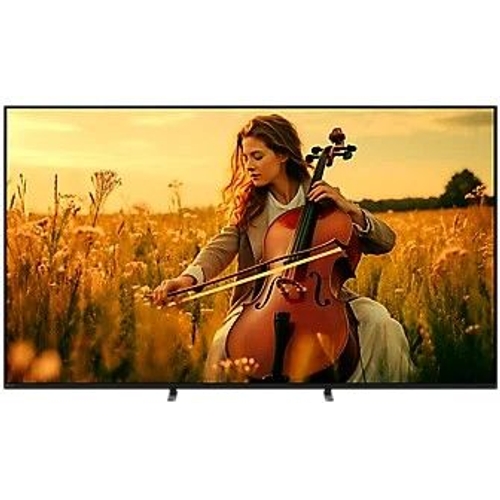
Bring all the excitement and drama of the big game into your living room with this massive 75-inch...Bring all the excitement and drama of the big game into your living room with this massive 75-inch Sony BRAVIA 5 smart TV. You'll feel like you're right there in the stands thanks to its vibrant, crystal-clear 4K MiniLED display and super-smooth XR Clear Image tech that gets rid of blurring for a truly lifelike view. And its XR Contrast Booster and XR Backlight Master Drive give you realistic lighting and intense depth, so the action almost leaps off the screen. It even has a clever X1 HDR Processor that uses AI to scan every image and tweak it to show off the best picture possible with a huge range of lifelike colours. You'll never need to buy a season ticket again. Screen (Inches/Type) - 75 4K Ultra HD QD-Mini LED
Operating System - Android TV
CINEMATIC CONTRAST
Sound-From-Screen, Just Like The Cinema
Product Dimensions with Stand (HxWxD) (mm) - 990 x 1671 x 405
Sony Bravia 5 75" Xr Miniled 4K Hdr Smart Tv - K75Xr55Bp.Uka£9.99 delivery£1,899.00Visit shop →
Product Information
Full details
This guide is for anyone looking to maximize their viewing experience with the Sony BRAVIA 5 75" Smart TV. Enjoy stunning picture quality and immersive sound, making your home entertainment come alive. Keep in mind that while the TV offers many features, optimal performance depends on your internet connection and external devices.
All features
Colour
Black
Energy Efficiency
D
Screen Size
75
Display Type
4K Ultra HD
Series
BRAVIA 5
Model Part Number
K75XR55BP.UKA
Brand
Sony
Extended Product Information
FAQs
How do I update the TV's software?
Go to the settings menu, select 'System' or 'About', and then choose 'Software Update'. Follow the on-screen instructions.
Can I connect a soundbar to the TV?
Yes, you can connect a soundbar via HDMI (ARC/eARC) or optical cable for enhanced audio.
Does the TV support 4K streaming?
Yes, the TV supports 4K streaming from various apps, provided you have a high-speed internet connection.
How do I use voice control?
Press the Google Assistant button on the remote and speak your command. You can control the volume, change channels, and search for content.
How do I reset the TV to factory settings?
Go to the settings menu, select 'System' or 'Device Preferences', then 'Reset'. Choose 'Factory data reset' and confirm.
What is the warranty period?
The warranty period is typically one year for parts and labor. Please check your product documentation for specifics.
How do I connect Bluetooth devices?
Go to the settings menu, select 'Remotes & Accessories', then choose 'Bluetooth settings'. Put your device in pairing mode and select it from the TV's list.
Troubleshooting
TV won't turn on
Check the power connection and ensure the power cord is securely plugged into both the TV and the wall outlet. Try a different outlet.
No picture or distorted picture
Check the HDMI cables and other connections. Make sure the input source is correctly selected. Reset the TV to factory settings.
Poor sound quality
Adjust the audio settings in the menu. Check external audio devices and connections. Ensure the TV's speakers are not obstructed.
Wi-Fi connection issues
Restart your router and TV. Ensure the Wi-Fi password is correct. Move the TV closer to the router or consider using an Ethernet connection.
Apps not working
Check your internet connection. Update the apps from the Google Play Store. Clear the cache and data of the problematic app.
Pros and Cons
Pros
Stunning 4K picture quality with QD-Mini LED technology.
Immersive sound experience with Acoustic Multi-Audio.
User-friendly Google TV interface for easy access to content.
Excellent for gaming with HDMI 2.1 features.
Supports Dolby Vision and Dolby Atmos for a cinematic experience.
Includes a wide range of smart features and apps.
Cons
Requires a strong internet connection for streaming.
Optimal performance depends on the quality of external devices.
The initial setup might require some time to configure settings.
May require additional sound equipment for a truly immersive experience.
Price may be higher compared to other TV brands with similar features.
Setup, Compatibility & Care
Initial Setup: Connect the TV to a power outlet and follow the on-screen instructions to set up the network, sign in to your Google account, and customize settings.
Connecting Devices: Connect your gaming consoles, Blu-ray players, and other devices via HDMI. Ensure all cables are securely plugged in.
Network Connection: Connect the TV to your home network via Wi-Fi or Ethernet for access to streaming services and online features.
Audio Setup: Configure the audio settings to match your sound system, whether it’s the built-in speakers or an external soundbar or receiver.
Placement: Ensure the TV is placed on a stable surface or mounted securely. Consider the viewing distance and angle for the best viewing experience.
Compatibility: The TV is compatible with various devices, including gaming consoles (PlayStation, Xbox), streaming devices (Apple TV, Roku), and sound systems.
Care:
Clean the screen with a soft, dry cloth.
Avoid using harsh chemicals or abrasive cleaners.
Ensure proper ventilation around the TV.
Regularly update the TV’s software to maintain optimal performance.



 Marks Electrical£1,449.00Visit shop
  Hughes£1,899.00Visit shop


