
ASUS PRIME X870-P WIFI Motherboard - Socket AM5 - DDR5
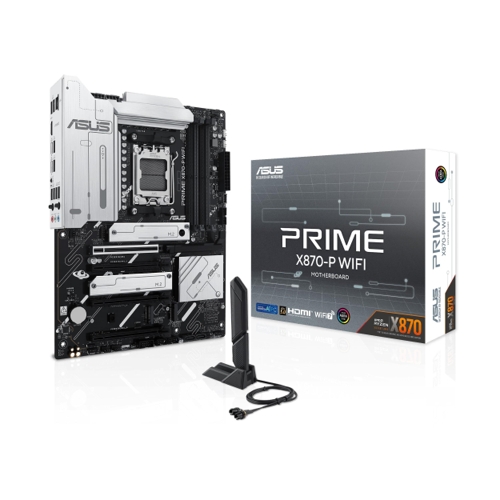
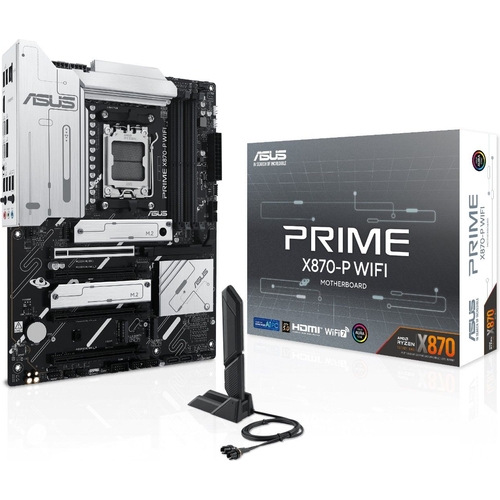
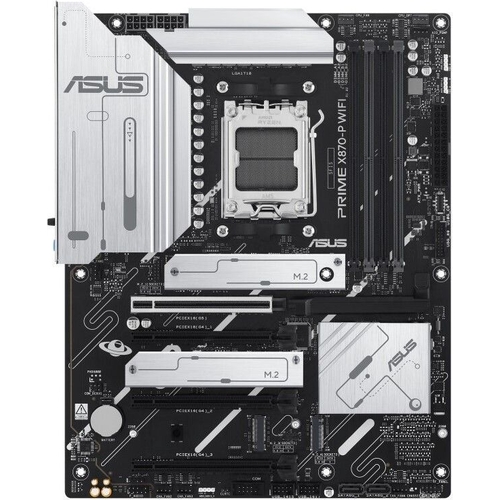
Experience top-tier performance with the Asus PRIME X870-P WIFI motherboard, designed for AMD Ryze...Experience top-tier performance with the Asus PRIME X870-P WIFI motherboard, designed for AMD Ryzen processors. This Socket AM5 motherboard supports cutting-edge DDR5 memory, ensuring fast data transfer and seamless multitasking. Equipped with integrated WiFi for hassle-free connectivity, it’s perfect for gamers and professionals alike seeking reliability and speed in their builds. Prime X870-P WIFI ASUS Prime series motherboards are expertly engineered to unleash the full potential of AMD Ryzen 9000 series processors. Boasting a robust power design, comprehensive cooling solutions and intelligent tuning options, the PRIME X870-P WIFI motherboard provides users and PC DIY builders with a range of performance optimizations via intuitive software and firmware features. It's designed to be Advanced AI PC-ready, offering the power and connectivity needed for demanding AI applications. AI Solutions ASUS AI Solutions, including AI Networking II for real-time bandwidth optimization and AI Cooling II for thermal control, offer new levels of ultrafast connectivity, performance and efficient cooling. AI Networking II AI Networking II combines intelligent technologies to continuously optimize network performance, provide trustworthy and seamless connectivity and unleash the full speed of WiFi 7. AI Cooling II AI Cooling II balances the thermals and acoustics of any build with a single click. An exclusive ASUS algorithm slashes unnecessary noise while running a quick stress test, and then it monitors CPU temperatures to dynamically adjust fans to optimal speeds. Robust Power Design 14(80A) + 2(80A) + 1(80A) power stages that integrate high-side and low-side MOSFETs and drivers into packages rated for up to 80 amperes each. This configuration ensures optimal power delivery, efficiency, stability and performance for both current and future AMD processors. Eight-Layer PCB Design The multi-layered printed circuit board design quickly dissipates heat around the voltage regulators to improve overall system stability and provide the CPU with more overclocking headroom. ProCool Connectors Proprietary connectors augment the motherboard's link to the power supply with 8 + 8 pin connectors that pass 12 volts of power directly to the processor. Each connector features solid pins that can handle more current than hollow-pin connectors. Digi+ VRM Control The Digi+ voltage-regulator module (VRM) delivers real-time control over voltage droop, automatically switching frequency and power-efficiency settings. Enhanced DDR5 Performance Comprehensive memory tuning options are the cornerstone of PRIME motherboards. The PRIME X870-P WIFI maximizes the potential of your DDR5 modules, from entry-level to extreme-speed kits. For entry-level modules without EXPO™ support, ASUS Enhanced Memory Profile (AEMP) automatically detects memory chips and provides optimized profiles for enhanced performance. For those looking to surpass stock DDR5 speeds, the PRIME X870-P WIFI offers extensive AMD Extended Profiles for Overclocking (EXPO) support and a wide array of UEFI settings for further performance tweaks. Four M.2 slots (up to 128 Gbps) PRIME X870-P WIFI offers a total of four M.2 slots, including one that supports data-transfer speeds of up to 128 Gbps via PCIe 5.0, two that support 64 Gbps via PCIe 4.0, and one that supports PCIe 3.0. This enables quicker boot-up and app load times with OS or application drives. Cooler by Design The PRIME X870-P WIFI motherboard is engineered with multiple onboard heatsinks and an array of hybrid fan headers to help ensure your rig stays cool and stable under intense workloads. AIO Pump Header A dedicated PWM/DC header supports self-contained water-cooling setups. VRM Heatsinks and Thermal Pads Two massive VRM heatsinks and essential thermal pads improve heat transfer from the MOSFETs and chokes for better cooling performance. Multiple Temperature Sources Each header can dynamically reference four thermal sensors. Fan Xpert 4 lets you to map the temperature of supported ASUS graphics cards to optimize cooling for GPU- and CPU-intensive tasks. 4-Pin PWM/DC Fan Each onboard header supports auto-detection of PWM or DC fans. M.2 Heatsinks Two M.2 heatsinks take care of the M.2 slots, preventing throttling that can occur with M.2 storage during extended transfers. The heatsink installed on the M.2_2 slot is a flexible M.2 heatsink, which can be installed on the M.2_2 or M.2_3 slot. Passive Chipset Heatsink An aluminium passive chipset heatsink ensures optimal cooling and stable performance. It is more durable and longer-lasting than heatsinks with fans, which can be vulnerable to the build-up of dust and debris. Smart Protection A dedicated integrated circuit protects each fan header from overheating and excess current. ASUS Fan Xpert 4 ASUS Fan Xpert 4 software offers comprehensive control over fans and AIO coolers. Auto-Tuning mode configures settings with one click, while Extreme Quiet mode reduces fan speeds for silent operation during light tasks. Controls are also available via the UEFI BIOS. Cooler Compatibility ASUS AIO coolers offer robust performance, high overclocking potential, bold aesthetics and customizable functionality for new motherboards, empowering you to build your dream gaming rig. Empowering Connections The PRIME X870-P WIFI motherboard offers a versatile range of connectivity, including support for WiFi 7, PCIe 5.0, Realtek 2.5Gb Ethernet, and an array of USB ports. WIFI 7 The next-gen WiFi 7 supports 160 MHz bandwidth in the 6 GHz band and 4096 QAM. Multi-Link Operation (MLO) ensures stable connections and low latency, supporting 2.4, 5, and 6 GHz bands for enhanced coverage and throughput. USB 40Gbps Type-C Ports Each port delivers up to 40Gbps of bi-directional bandwidth for the latest super-speed devices and drives. Both ports can be employed for up to two external 4K displays. PCIe 5.0 Slot The latest processors introduce PCIe 5.0 support, doubling data transfer speeds compared to PCIe 4.0, enhancing signal integrity, and providing backward-compatible CEM connectors and support for previous PCIe versions. Q-Antenna With Q-Antenna, attaching a WiFi antenna to your PC is now easy and fast. Instead of slowly rotating two fasteners until they finally lock in, they just snap into place. Less hassle, and more consistent performance. PCIe Slot Q-Release A physical lever unlocks the first PCIe slot's security latch with one tap, greatly simplifying the process of detaching a PCIe card from the motherboard when it's time to upgrade to a new graphics card or other compatible device. M.2 Q-Latch The innovative ASUS Q-Latch makes it easy to install or remove an M.2 SSD without the need for specific tools or screws. This design employs a simple locking mechanism to secure the drive and neatly detach it with one tap. Pre-Mounted I/O Shield Our pre-installed I/O shield safeguards ports, simplifies the build process, increases functionality and enhances aesthetics for PC DIY enthusiasts.
Best current price£59.99from AWD-IT.co.uk
Best offers
Shopping.co.uk recommended and popular offers
 AWD-IT.co.uk£59.99Visit shop ›
Asus Prime H610m-K D4 Intel Ddr4 Micro Atx Motherboard - Lga 1700
Visit shop › Debenhams£206.99Visit shop ›
Asus Unisex Black Prime X870-P Motherboard Amd Atx, 14+2+1(80A) Power Support, Pcie In Size 14
Visit shop ›


