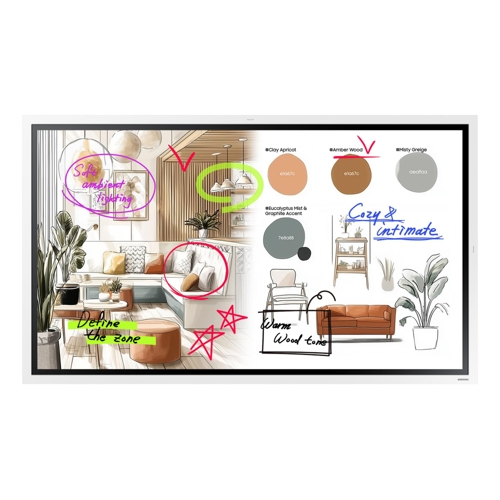
Samsung The Flip - 55 Inch

Experience writing at a higher standard with Samsung The Flip. Its Natural & Precise Writing offer...

Best current price£1,230.29from PCHUB.UK

All Offers

3 offers from £1,230.29 - £1,476.35

View price history by clicking the chart icon.

PCHUB.UKSamsung The Flip 55 Inch Wmfx
Free delivery in 1–3 days
£1,230.29
Visit shop
Samsung Business UKSamsung The Flip 55 Inch Wmfx White Lh55wmfwbgcxen
£5.99 delivery
£1,350.00
Visit shop
GamingKitSamsung The Flip 55 Inch Wmfx
Free delivery in 1–3 days
£1,476.35
Visit shop

Product Information

Full details

The Samsung WM55FX is designed for modern businesses and educational institutions seeking a dynamic and collaborative digital workspace. Its key benefit lies in its natural writing experience and advanced AI features that streamline note-taking, presentations, and content sharing. A potential caveat is the learning curve associated with its comprehensive feature set, requiring some initial familiarization.

All features

BrandSamsung

Extended Product Information

FAQs

How do I update the firmware on the WM55FX?

Firmware updates can typically be managed through the device's settings menu. Look for an 'About Device' or 'Software Update' option. Automatic updates can also be enabled if supported by your network configuration or via cloud management platforms like Samsung VXT.

Can I use the WM55FX as a standard monitor without the touch features?

Yes, the WM55FX can function as a standard display when connected to a PC via HDMI or USB-C. However, to utilize the touch and interactive features, a stable connection carrying touch data (usually via USB-C or a separate USB cable) is required.

What is the benefit of Samsung Knox security?

Samsung Knox provides multi-layered protection for your device, safeguarding against unauthorized access, malware, and data breaches. It ensures that sensitive business information stored or accessed through the WM55FX remains secure.

How does the AI Writing Tool work?

The AI Writing Tool analyzes handwritten input on the screen and can convert it into digital text, making it searchable and editable. It can also recognize and refine rough shapes into clean, professional graphics, enhancing presentations and documents.

Can I connect multiple devices simultaneously for screen sharing?

Yes, the WM55FX supports sharing content from up to 9 devices concurrently using the SMARTVIEW+ feature. This allows for efficient group collaboration and comparison of different information sources.

Is the screen protected against fingerprints and glare?

The WM55FX features an anti-glare coating designed to minimize reflections and improve visibility. While it helps reduce fingerprint visibility compared to standard glossy screens, regular cleaning with a microfiber cloth is recommended to maintain optimal clarity.

What is 'Annotation On'?

'Annotation On' allows users to draw, write, or highlight directly on any content displayed on the screen in real-time, without disrupting the original source or requiring the screen to be in a specific app. This is useful for collaborative feedback during presentations or video conferences.

Troubleshooting

Screen is unresponsive to touch

Ensure the screen is clean and free of debris. Restart the device. Check if a protective film is still applied and remove it. Verify that the USB-C or HDMI connection for touch input is secure.

Cannot connect to Wi-Fi network

Verify Wi-Fi network name (SSID) and password. Ensure the device is within router range. Restart both the WM55FX and the Wi-Fi router. Check router settings for MAC filtering or other restrictions.

Poor writing or drawing performance (lag, inaccuracy)

Ensure the screen is clean. Check the response speed settings. Restart the device. Verify that the specific app being used is optimized for the display. Ensure no other heavy applications are running simultaneously that might consume system resources.

Device won't power on

Check that the power cable is securely connected to both the display and a working power outlet. Try a different power outlet. If using an external power strip, bypass it and connect directly to the wall.

Content sharing fails

Ensure all connected devices are on the same network. Restart the sharing application on the source device and the WM55FX. Check for software updates on both the sharing device and the WM55FX. For AirPlay, ensure the Apple device and WM55FX are on the same Wi-Fi network.

Pros and Cons

Pros

  • Offers a highly responsive and natural writing experience.
  • Powerful AI tools automate tasks like text conversion and graphic refinement.
  • Supports seamless multi-device collaboration and content sharing.
  • Robust security features protect sensitive business data.
  • Versatile display adapts to different content and room layouts.
  • Integrated Workspace provides access to essential cloud and remote applications.

Cons

  • The extensive feature set may require a learning period for new users.
  • Optimal performance might depend on network stability for cloud-based features.
  • Requires compatible software and devices for full collaborative potential.
  • The initial investment can be significant.
  • Advanced features may be underutilized in simpler meeting scenarios.

Setup, Compatibility & Care

Setup: Connect the WM55FX using the included power cable. For enhanced functionality, utilize the USB-C Hub for a single-cable connection to a PC, enabling display, touch, and data transfer. Network connectivity can be established via Wi-Fi or Ethernet.

Compatibility: The device supports wireless screen sharing from Windows, macOS, Android, and iOS devices through SMARTVIEW+ and AirPlay 2. It is compatible with various cloud-based applications accessible via the Workspace feature, including Microsoft 365. Ensure your network meets recommended specifications for optimal performance.

Care: Clean the screen with a soft, dry, or slightly damp microfiber cloth. Avoid using abrasive cleaners or solvents. For dust removal on the bezel or stand, use a soft brush or a dry cloth. Firmware updates are recommended to ensure optimal performance and security; these can often be managed through the device's settings menu or the Samsung VXT platform.

Similar items

Price History

DatePrice
Visit shop