ASUS PRIME H810M-K Motherboard - LGA 1851 - Micro-ATX
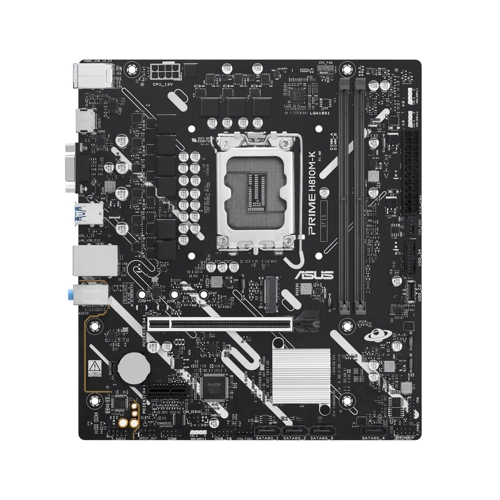
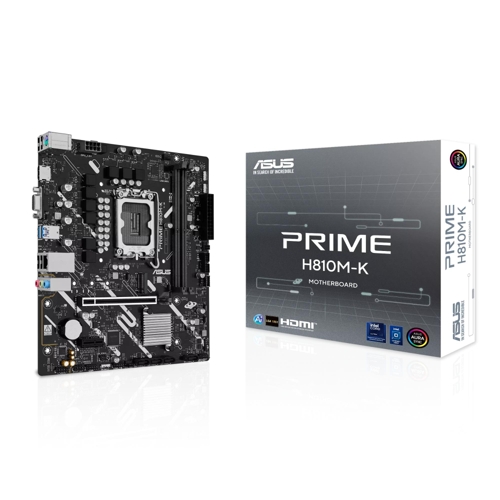
The ASUS PRIME H810M-K is a cutting-edge Micro-ATX motherboard compatible with Intel's latest Ultr...The ASUS PRIME H810M-K is a cutting-edge Micro-ATX motherboard compatible with Intel's latest Ultra Processors Series 2. Engineered for reliability and performance, it supports up to 128 GB of DDR5 RAM and offers robust connectivity options. Key features include a high-performance Intel H810 chipset, versatile DDR5 memory support, and comprehensive connectivity with four SATA 6Gb/s ports and an M.2 slot. The Realtek 7.1 Surround Sound audio codec provides superior sound quality, making it ideal for multimedia enthusiasts and gamers. Its Micro-ATX form factor ensures easy integration into various case setups. The motherboard is perfect for tech-savvy builders, students, gamers, hybrid professionals, and creatives seeking a dependable platform for everyday computing and high-performance applications. It boasts a 6+1+1+1 phase digital power design for stable power delivery, ASUS-exclusive DIMM Fit for memory optimization, an M.2 slot supporting up to 64Gbps via PCIe 4.0 for faster data access, and robust cooling solutions with onboard chipset heatsinks and hybrid fan headers. ASUS Fan Xpert 2+ software offers comprehensive fan control, and the motherboard includes PCIe 4.0 M.2, a PCIe 4.0 slot, and multiple USB ports, including a Type-C connection. Realtek 1 Gb Ethernet reduces CPU overhead for faster data transfer. It also features customizable RGB lighting controls and EZ PC DIY innovations for a simplified building process. The PRIME H810M-K is designed to be Advanced AI PC-ready, offering the power and connectivity needed for demanding AI applications.
ASUS PRIME H810M-K Intel H810 LGA 1851 micro ATXFree delivery in 1–3 days£105.99Visit shop →
ASUS PRIME H810M-K mATX Motherboard, Intel H810, S 1851, DDR5, SATA3, PCIe 4.0,Free delivery in 1–3 days£117.90Visit shop →
ASUS PRIME H810M-K Intel H810 LGA 1851 (Socket V1) micro ATX£20.00 delivery£144.88Visit shop →
Product Information
Full details
The ASUS PRIME H810M-K is a Micro-ATX motherboard designed for users building a reliable PC with the latest Intel® Core™ Ultra Processors (Series 2). Its key benefit is providing a stable platform with robust connectivity and advanced AI PC readiness. A potential caveat is its focus on DDR5 memory, which may require newer components. This motherboard offers a 6+1+1+1 phase digital power design, versatile DDR5 memory support up to 128GB, and essential connectivity including M.2, SATA 6Gb/s, Gigabit Ethernet, and multiple USB ports, including Type-C.
All features
Model Part Number
90MB1N10-M0EAY0
Brand
ASUS
Extended Product Information
FAQs
What type of RAM does the ASUS PRIME H810M-K support?
This motherboard supports DDR5-SDRAM memory. It features two DIMM slots and can accommodate a maximum of 128 GB of unbuffered, non-ECC RAM.
Which processors are compatible with the PRIME H810M-K?
The motherboard is designed for Intel Core Ultra Processors (Series 2) that use the LGA 1851 socket.
Does this motherboard have Wi-Fi or Bluetooth built-in?
No, the ASUS PRIME H810M-K does not come with integrated Wi-Fi or Bluetooth. You will need to add a separate Wi-Fi card or USB adapter if wireless connectivity is required.
What storage interfaces are available?
It offers four SATA III (6Gb/s) connectors for traditional drives and one M.2 slot that supports PCIe 4.0 x4 speeds for high-performance NVMe SSDs (up to 2280 size).
Can I connect multiple graphics cards to this motherboard?
No, the PRIME H810M-K has one PCIe 4.0 x16 slot primarily intended for a single graphics card. It does not support multi-GPU configurations like SLI or CrossFire.
What is the maximum resolution and refresh rate supported by the video outputs?
The HDMI port supports up to 4K resolution at 60Hz, and the VGA port supports up to 1920x1200 resolution at 60Hz, depending on the integrated graphics capabilities of the installed CPU.
How do I update the BIOS?
You can download the latest BIOS file from the official ASUS support website for the PRIME H810M-K. Update the BIOS through the EZ Flash utility in the UEFI BIOS interface, typically by using a USB flash drive.
Troubleshooting
No power or no POST (Power-On Self-Test)
Verify all power connections (24-pin ATX, 8-pin EPS) are secure. Ensure CPU is correctly seated and the CPU cooler is properly installed. Check if RAM modules are fully inserted in the correct slots. Try booting with minimal components (CPU, one RAM stick, GPU if no integrated graphics).
Computer randomly restarts or shuts down
Check system temperatures; overheating may cause shutdowns. Ensure adequate case cooling and fan operation. Verify power supply unit (PSU) is sufficient for components. Check for unstable RAM by testing with a single stick or running memory diagnostics.
M.2 SSD not detected
Ensure the M.2 SSD is properly seated in the slot and secured with the screw. Check if the M.2 slot is enabled in the BIOS settings. Confirm the SSD is compatible (PCIe 4.0 x4, up to 2280 size).
USB devices not working
Try different USB ports. Ensure USB drivers are installed correctly via Windows Update or the ASUS support website. Check USB settings in BIOS to ensure they are enabled.
Audio issues (no sound, distorted sound)
Install the latest Realtek audio drivers from the ASUS support website. Ensure speakers/headphones are properly connected and selected as the default audio device in Windows. Check the 7.1 channel settings in the audio control panel.
Pros and Cons
Pros
Supports the latest Intel Core Ultra (Series 2) processors.
Offers high-speed DDR5 memory support up to 128 GB.
Includes a fast PCIe 4.0 M.2 slot for SSDs.
Robust 6+1+1+1 phase digital power design for stability.
Advanced AI PC-ready capabilities.
Versatile connectivity options including USB Type-C.
Cons
Micro-ATX form factor may limit expansion compared to larger boards.
Only two memory slots might be insufficient for extreme memory configurations.
Does not include Wi-Fi connectivity natively.
PCIe 4.0 is limited to one x16 and one x1 slot.
Setup, Compatibility & Care
Setup:
Ensure your PC case is compatible with the Micro-ATX form factor (234mm x 211mm).
Install the Intel LGA 1851 socket CPU carefully, aligning the triangular markers.
Insert DDR5 DIMM memory modules into the designated slots until they click securely. Refer to the manual for dual-channel configuration.
Connect storage devices (HDDs/SSDs) to the SATA 6Gb/s ports and install NVMe SSDs into the PCIe 4.0 M.2 slot.
Connect the 24-pin ATX and 8-pin EPS power connectors from your power supply.
Connect case front panel headers, CPU fan, chassis fans, and any RGB lighting strips to the appropriate onboard headers.
Install your graphics card into the PCIe 4.0 x16 slot.
Connect display cables to the HDMI or VGA ports and peripherals to the USB ports.

 Box.co.uk£82.99Visit shop
  AWD-IT.co.uk£87.99Visit shop

