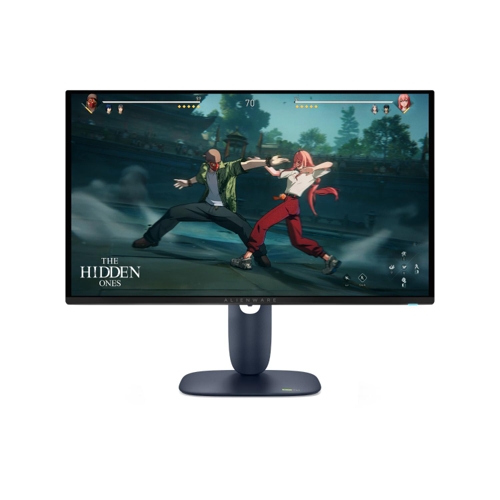
Alienware AW2725D 27 QD-OLED QHD 280Hz Gaming Monitor
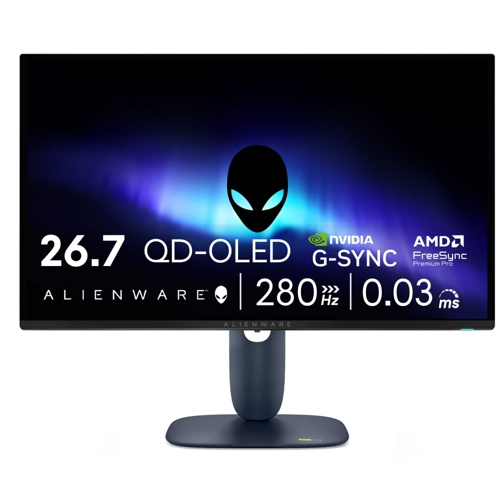
Immersive QD-OLED DisplayExperience stunning visuals on the Alienware AW2725D’s 27-inch QD-OLED pa...

Best current price£469.97from Drones Direct (BID)

All Offers

2 offers from £469.97

View price history by clicking the chart icon.

Drones Direct (BID)Alienware Blue Aw2725d 27 Qd-Oled Qhd 280Hz 0.03Ms Gaming Monitor
Free delivery in 1–3 days
£469.97
Visit shop
Laptops Direct (BID)Alienware Aw2725d 27 Qd-Oled Qhd 280Hz 0.03Ms Gaming Monitor Blue, Laptops Direct - GAME-AW2725D
£6.95 delivery
£469.97
Visit shop

Product Information

Full details

The Alienware AW2725D is designed for competitive gamers and visual enthusiasts seeking an unparalleled visual experience. Its key benefit is the stunning QD-OLED display combined with an ultra-fast 280Hz refresh rate for incredibly smooth and responsive gameplay. A potential caveat for some users might be the monitor's typical brightness of 250 cd/m², though it can reach 1000 cd/m² in HDR. This monitor features a 27-inch Quad HD (2560 x 1440) QD-OLED panel, offering true blacks, exceptional color accuracy (99.3% DCI-P3), and a rapid 0.03ms response time. It also includes NVIDIA G-SYNC Compatibility and AMD FreeSync Premium Pro, enhanced gaming modes, and Alienware's signature futuristic design with customizable lighting.

All features

Model Part NumberGAME-AW2725D
BrandAlienware

Extended Product Information

FAQs

What is QD-OLED technology?

QD-OLED technology combines Quantum Dot technology with OLED displays to deliver exceptional color volume, brightness, and contrast, resulting in incredibly vibrant and lifelike images.

Is this monitor good for competitive gaming?

Yes, with its 280Hz refresh rate, 0.03ms response time, and adaptive sync technologies, it's exceptionally well-suited for competitive gaming where speed and clarity are paramount.

What is the difference between typical brightness and peak HDR brightness?

Typical brightness (250 cd/m²) is the standard brightness level for SDR content. Peak HDR brightness (1000 cd/m²) is the maximum brightness achievable for High Dynamic Range content, providing more impactful highlights.

Can I use this monitor with both NVIDIA and AMD graphics cards?

Yes, the monitor is NVIDIA G-SYNC Compatible and AMD FreeSync Premium Pro certified, meaning it works seamlessly with both NVIDIA and AMD graphics cards for tear-free visuals.

How do I connect my console to this monitor?

You can connect modern consoles like the PS5 or Xbox Series X/S using the HDMI 2.1 ports for the best visual experience, including higher resolutions and refresh rates.

What ports are available on the monitor?

The monitor features multiple HDMI 2.1 ports, one DisplayPort 1.4, one USB Type-C port (which can also support charging), one USB Type-B upstream port, and one USB Type-A downstream port.

Does the monitor have built-in speakers?

No, this monitor does not come with built-in speakers. You will need to use external speakers or headphones for audio.

What is the warranty period for this monitor?

Alienware typically offers a 3-year warranty for their monitors, including coverage for burn-in on QD-OLED panels.

Troubleshooting

Monitor not turning on

Ensure the power cable is securely connected to both the monitor and a working power outlet. Check the power button on the monitor.

No signal detected

Verify that the correct input source is selected on the monitor. Check that the video cable is securely connected at both ends. Try a different cable or port.

Screen flickering or tearing

Ensure adaptive sync technologies (G-SYNC/FreeSync) are enabled in the monitor's OSD and in your graphics card's control panel. Update your graphics drivers.

Colors appear washed out or inaccurate

Adjust the color settings in the monitor's OSD. Ensure the correct color profile is selected in your operating system's display settings. Calibrate the display if necessary.

Burn-in visible on screen

Run the monitor's built-in pixel refresh or screen maintenance tool. Avoid prolonged display of static images. Contact support if the issue persists.

Pros and Cons

Pros

  • Stunning QD-OLED picture quality with exceptional color accuracy and contrast.
  • Extremely high refresh rate (280Hz) and ultra-fast response time (0.03ms) for superior gaming performance.
  • Effective adaptive sync technologies (G-SYNC Compatible, FreeSync Premium Pro) for tear-free gameplay.
  • ComfortView Plus hardware solution reduces eye strain without compromising color accuracy.
  • Premium build quality and distinctive Alienware design with customizable lighting.

Cons

  • Typical brightness of 250 cd/m² may be limiting for some HDR content outside of peak highlights.
  • QD-OLED technology can be susceptible to burn-in over long periods of static image display, though measures are in place.
  • Energy efficiency rating (F for HDR and SDR) indicates higher power consumption compared to some alternatives.
  • Built-in speakers are not included.

Setup, Compatibility & Care

Setup:

  1. Unpack all components carefully. Use the included stand to attach the monitor.
  2. Connect your gaming PC or console using the provided DisplayPort, HDMI 2.1, or USB Type-C cables.
  3. Connect the USB Type-B upstream cable to your PC to enable the built-in USB hub.
  4. Power on the monitor and your device.
  5. Navigate the On-Screen Display (OSD) menu to select your input source and configure display settings, including refresh rate and adaptive sync.

Compatibility:

  • Operating Systems: Windows, macOS, Linux (plug-and-play recommended, specific driver support may vary).
  • Gaming Consoles: Compatible with PlayStation 5, Xbox Series X/S, and previous generation consoles supporting HDMI 2.1.
  • Graphics Cards: Supports NVIDIA G-SYNC (compatible mode) and AMD FreeSync Premium Pro on a wide range of modern GPUs.

Care:

  • Cleaning: Gently wipe the screen with a soft, dry microfiber cloth. For stubborn smudges, lightly dampen the cloth with water. Avoid harsh chemicals or abrasive materials.
  • Burn-in Prevention: While Alienware includes anti-burn-in technology, it's advisable to avoid leaving static images (like taskbars or logos) on screen for extended periods at maximum brightness. Utilize screen savers and power-saving modes.
  • Ventilation: Ensure the monitor has adequate airflow around it, especially during prolonged use, to prevent overheating.

Similar items

Price History

DatePrice
Visit shop